Comment on the map and mention teammates
Pin a comment to a spot on the map, reply, mention a teammate so they get an email, and resolve or delete a thread when it's done.
On a computer, apps with comments enabled let you pin a comment to a spot on the map, so a question about a tree or a boundary sits right where it is. Everyone with access to the app can comment, viewers included. Not every app has this: if you don't see Comments (c) among the buttons at the top of the map, ask us.
Leave a comment
- Open the page or record you want to talk about. Each thread belongs to the page where it was left, so a thread on a record shows with that record.
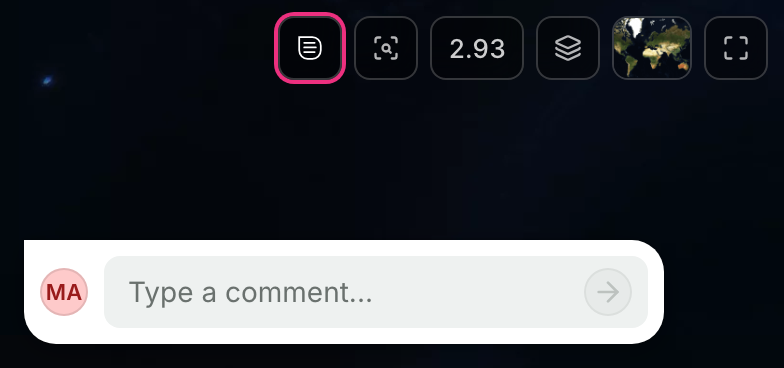
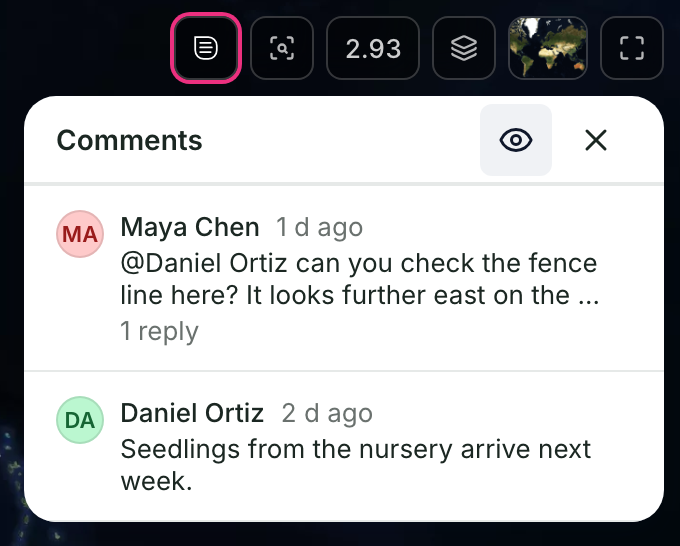
- Click the comments button at the top of the map (pointing at it shows Comments (c)), or press C. The Comments panel opens and the pointer changes.
- Click the spot on the map.
- Type in Type a comment....
- Press Enter, or click the arrow, to send. Shift+Enter starts a new line.
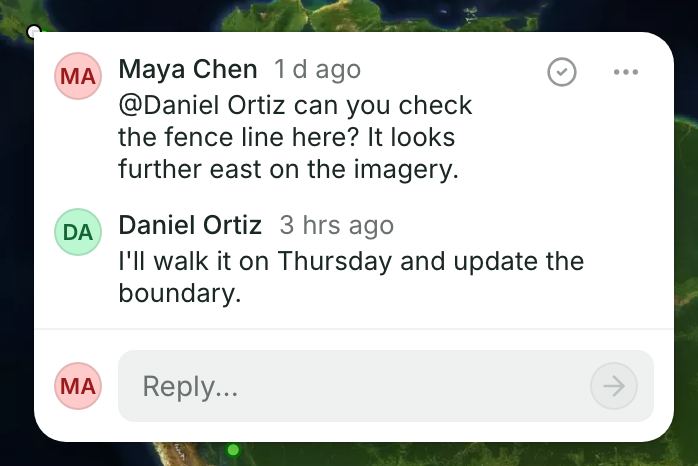
The comment shows on the map as a pin with your picture, and its thread opens. Press Esc to stop placing comments.
Reply to a thread
Click a pin on the map, or click a thread in the Comments panel. The thread opens next to its pin. Type in Reply... and press Enter.
Mention someone
- In a comment or a reply, type @ and the start of a name or email.
- Pick the person from the list with a click, or with the arrow keys and Enter. While the list is open, Enter selects the highlighted person instead of sending.
- Send the comment.
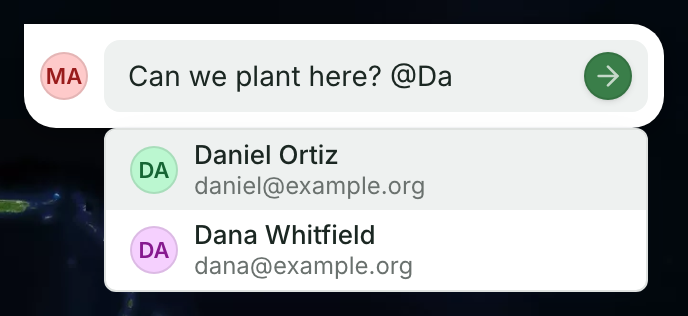
You can mention anyone who has access to the app and has signed in at least once. When you mention someone else, they receive an email with an Open comment button that takes them to the thread.
While an open thread on the page mentions you, the comments button shows a pink dot.
Resolve or delete a thread
The person who started a thread can resolve or delete it. Super admins can also resolve or delete other people's threads.
- To resolve a thread, click the check mark in the open thread, or click ⋯ and choose Resolve thread. The thread leaves the map and the panel.
- To delete a thread, click ⋯ and choose Delete thread. This removes the comment and all its replies.
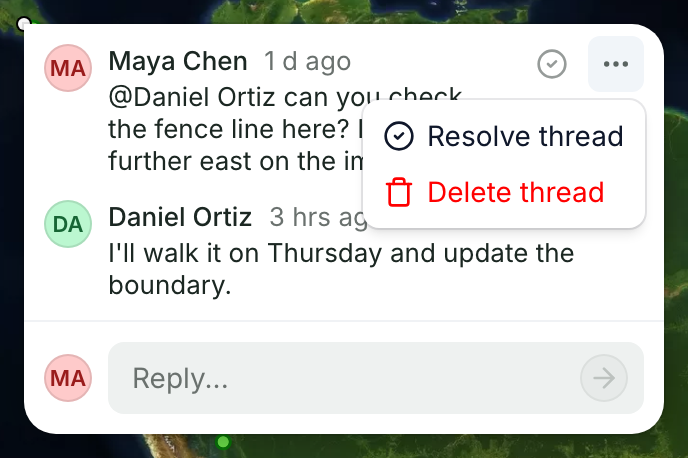
In the Comments panel, you can also right-click a thread for Resolve thread and Delete thread.
Hide comments on the map
Click the comments button to open the Comments panel, then click the eye at the top of the panel (Hide comments on map). Click it again to show them. Pins also come back when you reload the page.
Good to know
- You can't edit a comment after you send it, or delete one reply on its own.
- Comments aren't on phones, and apps open to the public have no comments.
To learn your way around the map itself, see Use the map.